§ 1Projects inside projects
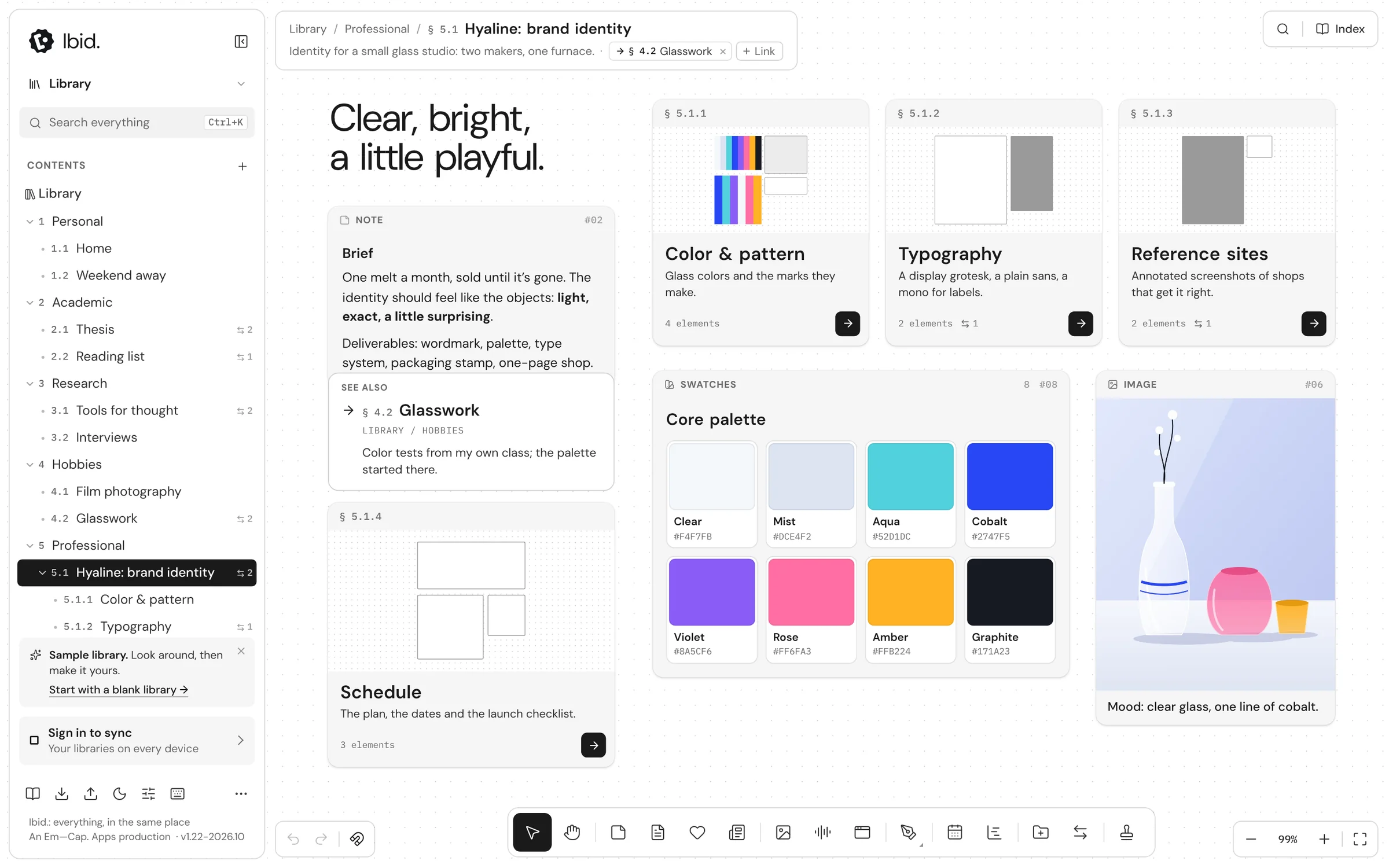
A library is a book. Each project is a chapter with its own canvas, and any project can hold more projects, as deep as you need. They are numbered like a book: 1, 1.1, 1.1.2.
- Make a projectPress P and click the canvas, or use the + next to Contents in the sidebar. A project card opens its canvas with a double-click or the arrow.
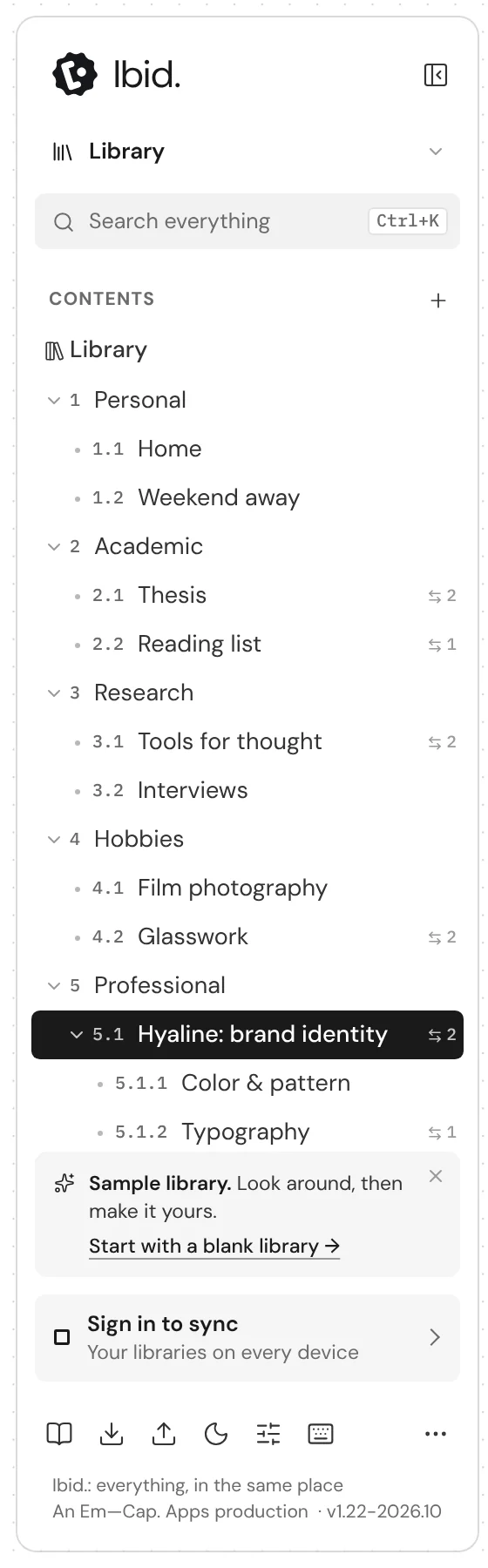
- Move aroundThe sidebar shows the whole tree. The card at the top left shows where you are; click a step of the path to go up, or press ⌘/Ctrl ↑.
- Peek at the sidebarWith the sidebar hidden, move the mouse over the card at the top left and the sidebar slides in. It stays while you use something in it and leaves when the mouse does. The button in its corner keeps it open.
- Link two projectsA See also card (X) points to another project, and the link shows on both sides.
- Every card in a listThe list button at the top right, or Shift L, shows every card in the library, in folders like the sidebar tree (the arrow opens and closes each project), newest first inside each one, with search and a filter for each kind of card. Images show as a cropped strip, calendars as the month, stamps next to the card they mark. Click a card to go to it on the canvas, already open.
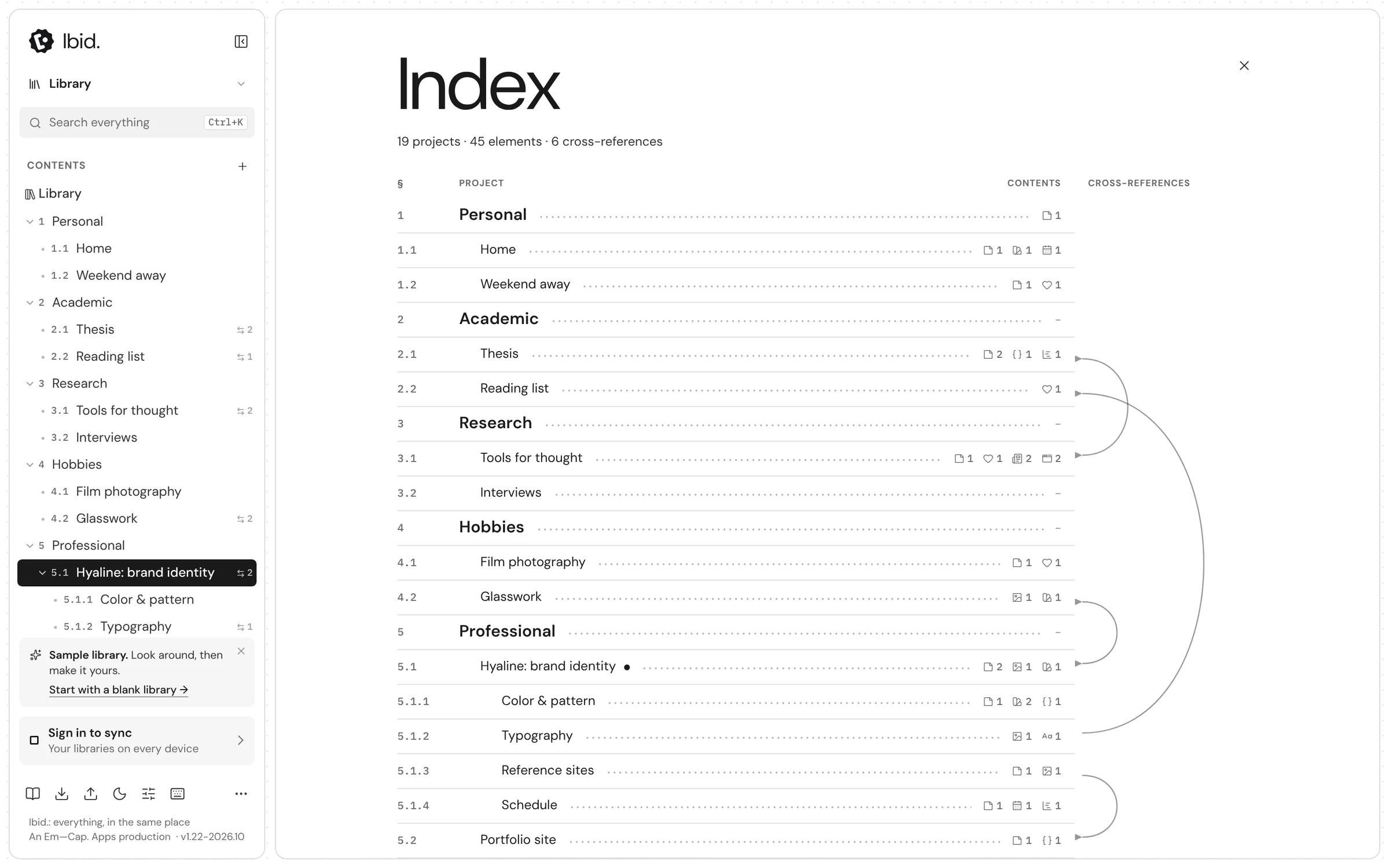
- The IndexPress G, or Index at the top right, for the whole book: every project, what it holds and every cross-reference, plus tags, stamps and liked links.
- LibrariesKeep separate books for separate lives. Switch them from the library name at the top of the sidebar.
§ 2Cards
Everything on a canvas is a card. Pick one from the dock at the bottom, then click where it should go. Or skip the dock: double-click the canvas to write, and paste a link, an image or text to make the right card for it.
Swatches, type sheets, code and the two drawing tools live together in the Design menu (see § 5).
On every card
- ObservationsSelect a card and use the speech bubble to add a comment, a piece of code or a link under it.
- Synced cardsMore, then Copy as synced card, and paste it in another project. Editing one changes every copy.
- TagsType
#tagin any text. Click a tag to list everything that has it. - Double-clickOn text, it selects the word. Anywhere else on the card, it opens the card.
§ 3Writing
Click a note and write. Lines become lists and headings as you type, and a small bar appears whenever you select text.
- ListsStart a line with -, 1. or [] and a space.
- Headings#, ## or ### and a space. Or type a slash and the style:
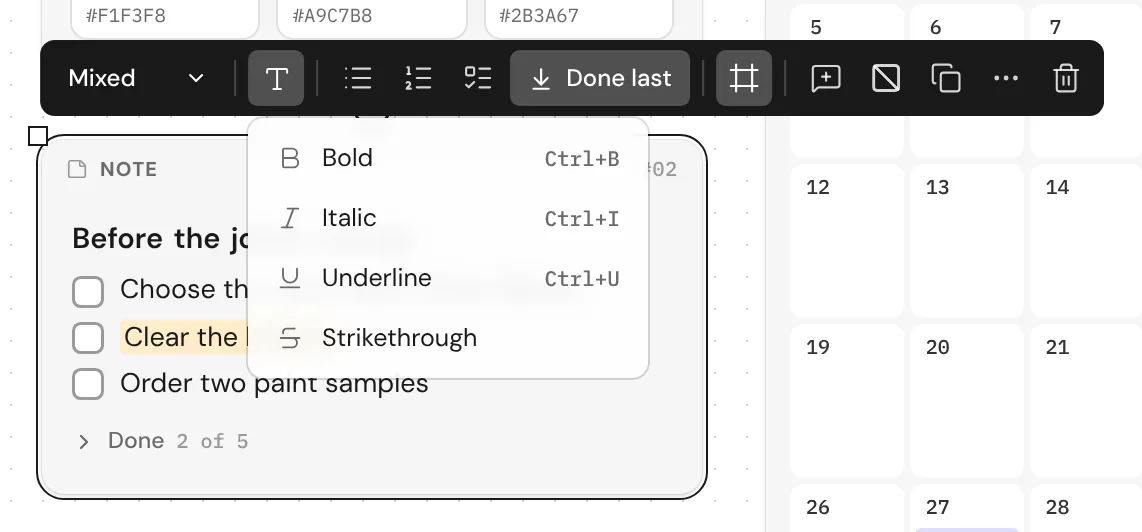
/h1,/todo,/quote. - To-dos in three stepsEach click on the box moves it on: empty, in progress (a dot in the middle), done. A fourth click empties it again. Done last sends finished items to the bottom, folded; each list in the card folds on its own.
- How a note growsThe square with a dot in the note's bar. Pick the point that stays put and the note grows away from it: up, down or both ways. With Fits the text, the width follows what you write up to 600 px, and dragging the edge changes that limit.
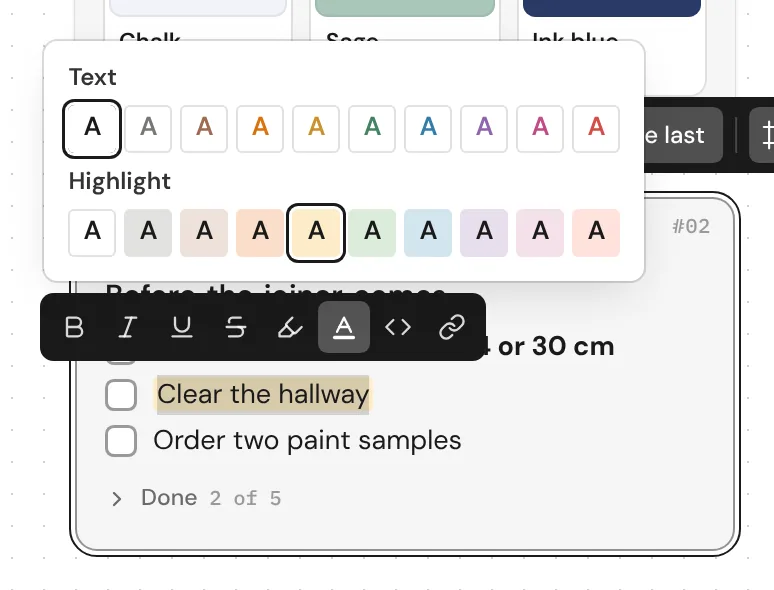
- FormattingSelect text: bold, italic, underline, strikethrough, highlight, color, code and link. With the whole note selected, the T in the card's bar does bold, italic, underline and strikethrough for all of it.
- Text color and highlightIn the selection bar, the A opens two rows: the color of the letters and the color behind them. They work together, and on part of text that already has a color.
- IndentTab and Shift Tab on a list item.
- ColumnsTab in a line of text adds a tab stop, so words line up in columns; Shift Tab takes it back.
§ 4Arranging the canvas
- Pan and zoomScroll, or hold Space and drag. Zoom with ⌘/Ctrl and scroll, or pinch. 0 fits everything, 1 is 100%.
- Select severalDrag on empty canvas to draw a box, or Shift-click cards.
- Move and snapDrag a card. It snaps to the dots; hold ⌘/Ctrl to move freely. The magnet at the bottom left turns snapping off.
- ConnectDrag from the little + on the edge of a selected card to another card. Drop it on empty canvas for a new connected card.
- TidySelect a few cards and use Tidy to line them up.
- File into a projectDrag cards onto a project card, or onto a project in the sidebar. A project goes in with everything inside.
- Cut, copy and paste projectsCut (⌘/Ctrl X) leaves a project where it is until you paste; then it moves to where you paste. Copy and paste asks first: Duplicate makes a copy with everything inside, Paste a link adds a See also card that opens the original.
- Layers] brings to front, [ sends to back.
§ 5Design tools
The pen in the dock opens Swatches, Type, Code, Drawing pad and Draw. Their keys still work on their own: S, T, C, R, Q.
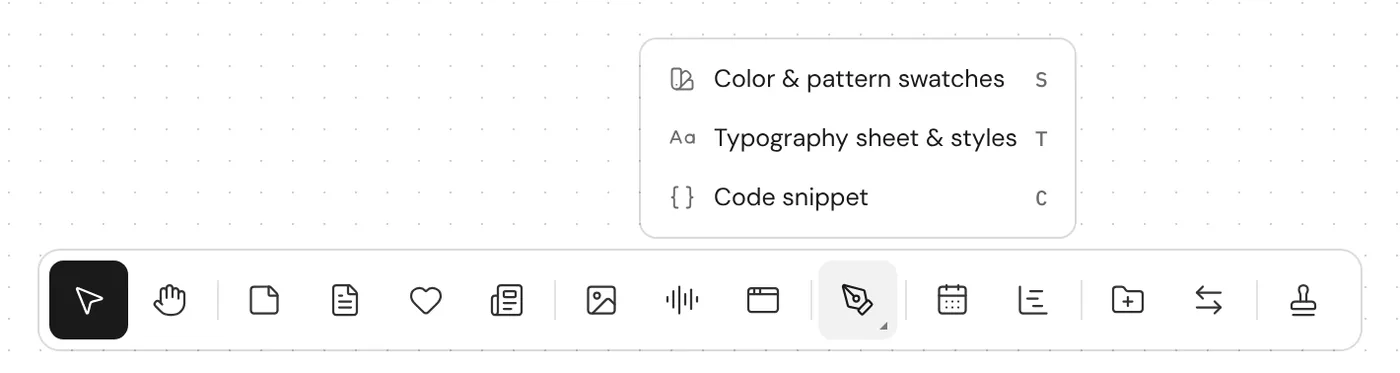
- SwatchesColors and patterns (stripes, dots, grid, zigzag, scallops, checker). Copy the palette as CSS variables. With a color copied (#hex, rgb() or hsl()), a new color comes in with it. With your account, the wave button links the card to a palette in Tinte: keep the card there or bring a palette from there, and the two change together.
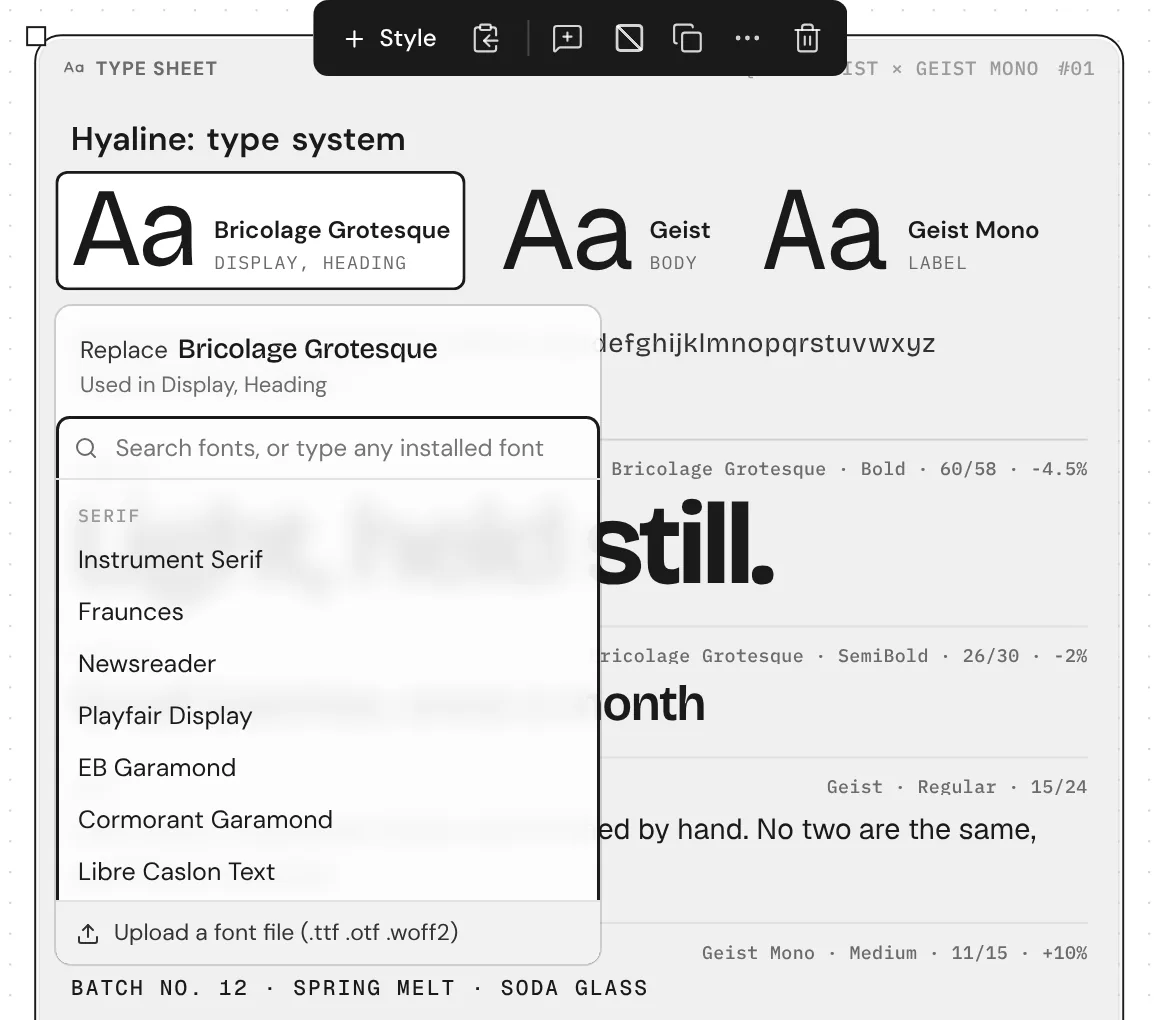
- Type sheetA type system with live samples. Click a family at the top, or the line of letters, to replace that font in every style that uses it. Click a style below to change its weight, size, leading, tracking and case. Copy the styles as CSS.
- CodeA snippet with syntax colors and a copy button.
- Your own fontsIn the font list, type the name of any font installed on your computer, or upload a .ttf, .otf or .woff2 file.
§ 6Audio and the Inbox
Record a thought on your phone and find it later in Ibid., already written down and named, waiting in the Inbox until you put it in a project.
In an audio card
- Record or dropPress U to record, or drop an audio file on the canvas.
- TranscribeSelect the card, then Transcribe. Online is the default: it goes through your Emilio Capital account and gives the best text. Without an account or internet, it transcribes on this computer instead, and the audio never leaves it.
- Asks firstBefore the first audio goes to OpenAI, Ibid. asks. OpenAI doesn't use what it receives to train its models. Without your permission, Ibid. transcribes on this device, and memos from your phone are kept without text. Change it in the account panel.
The Inbox
Signed in, the Inbox sits under the search in the sidebar, with the number of memos waiting. Each memo has its name, its text and a play button. Add here puts it in the project you are in, Move to… picks another one. Once filed, it becomes a normal audio card. Things you send to Ibid. from your phone's Share menu (text, links, photos and files) land here too, on every device, and become the right card when you file them. From the browser, the Send to Ibid. button (in Save from the web, at the bottom of the Inbox) sends the page, its title and the text you selected, which become an article card with the quote.
From an iPhone, with one tap
- In Ibid., open the Inbox, then Record from your phone, then Make a key. Copy the key and the address.
- Open the Shortcuts app and make a new shortcut.
- Add the action Record Audio. Set Start Recording to Immediately and Finish Recording to On Tap.
- Add the action Get Contents of URL and paste the address in the URL.
- Tap the arrow to show more. Method: POST.
- Under Headers, tap Add new header. In the left field, where it says Key in gray, type
Authorization. In the right field, paste the key; it starts withBearer ibk_. - Request Body: File. In File, pick Recorded Audio.
- Add the action Show Notification and put Contents of URL in it. It shows Saved and the memo's name.
- Put the shortcut on the Action Button, the Lock Screen or a widget.
If the shortcut says the request timed out, check the header: the left field has to say Authorization, not the gray Key.
Any phone can also record at ibid.page/rec: sign in with the same email and keep it on the home screen.
§ 7Look and colors
The sliders at the bottom of the sidebar open Appearance: corners, the dots on the canvas, card shadows, colors and the language. The moon switches between the light and the dark theme, and each theme keeps its own choices.
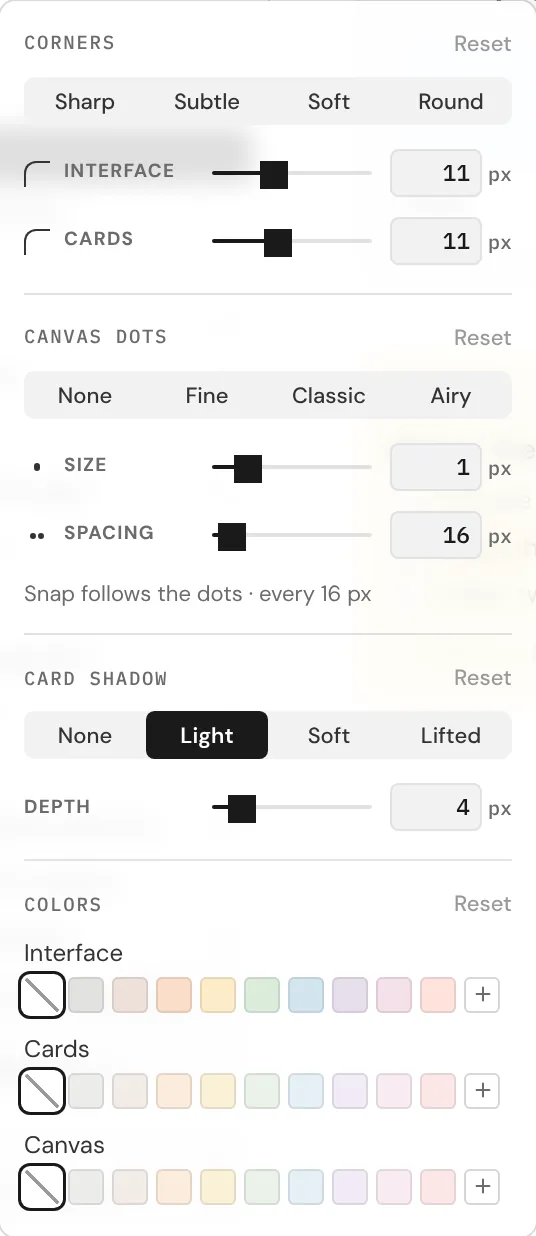
- CornersFrom sharp to round, for the interface and for the cards.
- Canvas dotsTheir size and spacing. Snapping follows them.
- Card shadowNone, light, soft or lifted.
- ColorsThe interface, the cards and the canvas, each with nine colors or any color you pick with the +.
- LanguageEnglish or Portuguese. Ibid. starts in the language of your browser.
The color of one card
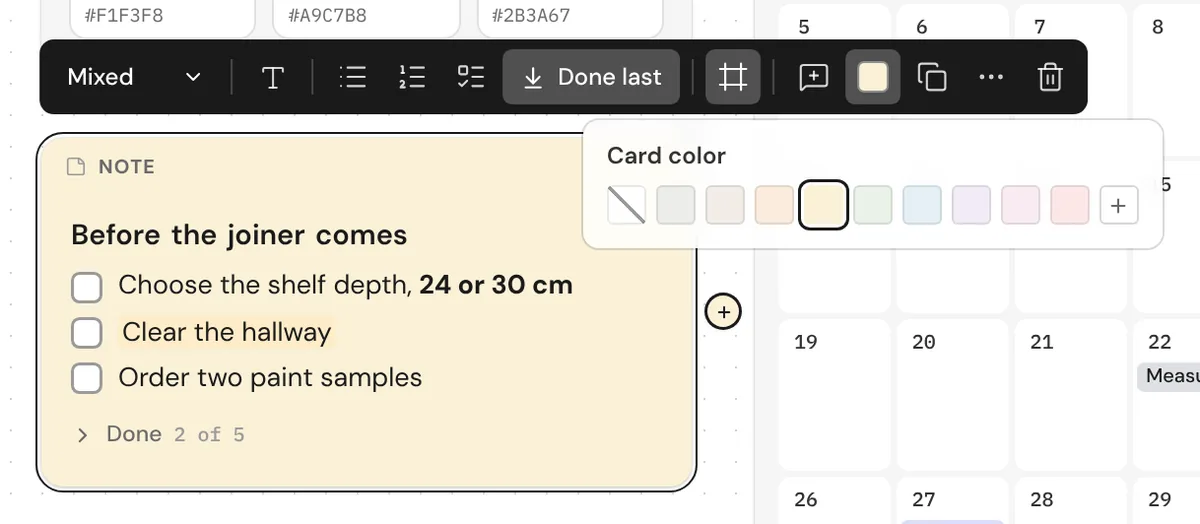
Select one or more cards and use the small square in their bar. The nine colors follow the theme; a color of your own stays as you picked it, and the text on it turns light or dark by itself.
Emojis
The smiling face with a plus, in the bar of a note, a document, the text formatting bar and every card, opens the Ibid. emojis: hand-cut icons that go where the cursor is, in notes, documents, titles and spreadsheet cells. The first row picks their color (ink, or one of the nine); when copied or exported they become the usual emoji characters.
Interface glass
In Appearance, Interface glass sets how see-through the sidebar, the dock and the corners are: See-through, Default, Solid, or anything in between.
Tools you never use
Right-click a tool in the dock (or hold it, on touch) and pick Hide this tool. Hidden tools go to the crossed-out eye at the end of the dock, where you can use them or bring them back; Arrange the tools puts a − and a + on each one. Their shortcuts keep working, and each device keeps its own choice.
§ 8Account and sync
Ibid. works without an account, and everything stays in this browser. Sign in with your Emilio Capital account (the same as the other apps in the family) to have your libraries on every device.
- Sign inSign in to sync, at the bottom of the sidebar. Type your email and the code that arrives.
- What syncsEvery library, project and card, with their images, covers, audio and fonts. The most recent change wins.
- What stays on each deviceWhere you are on each canvas and how close, the look of the app, your shortcuts and your own stamps.
- The sample libraryIt never goes up to the account. Start a blank library to make the book yours.
- Undo⌘/Ctrl Z undoes what you did here, even after changes arrive from another device, and keeps those changes.
- Share a projectShare…, in the project menu. Invite by email or turn on the invite link, and choose whether each person can edit or only view. Whoever joins gets the project in their own library, with everything inside.
- LiveWhat each person changes shows up for the others in seconds. The initials of who is in the project sit next to the Index, and the card someone is writing in takes their color and name.
- Invites and leavingEmail invites also show up in the account menu. Deleting a project shared with you means leaving it; whoever shared it keeps it.
- View-only linkIn the same Share…, a link anyone opens without an account, read only. It follows the project.
- Sign outIt syncs first, then takes the account's libraries off this browser.
§ 9On the phone
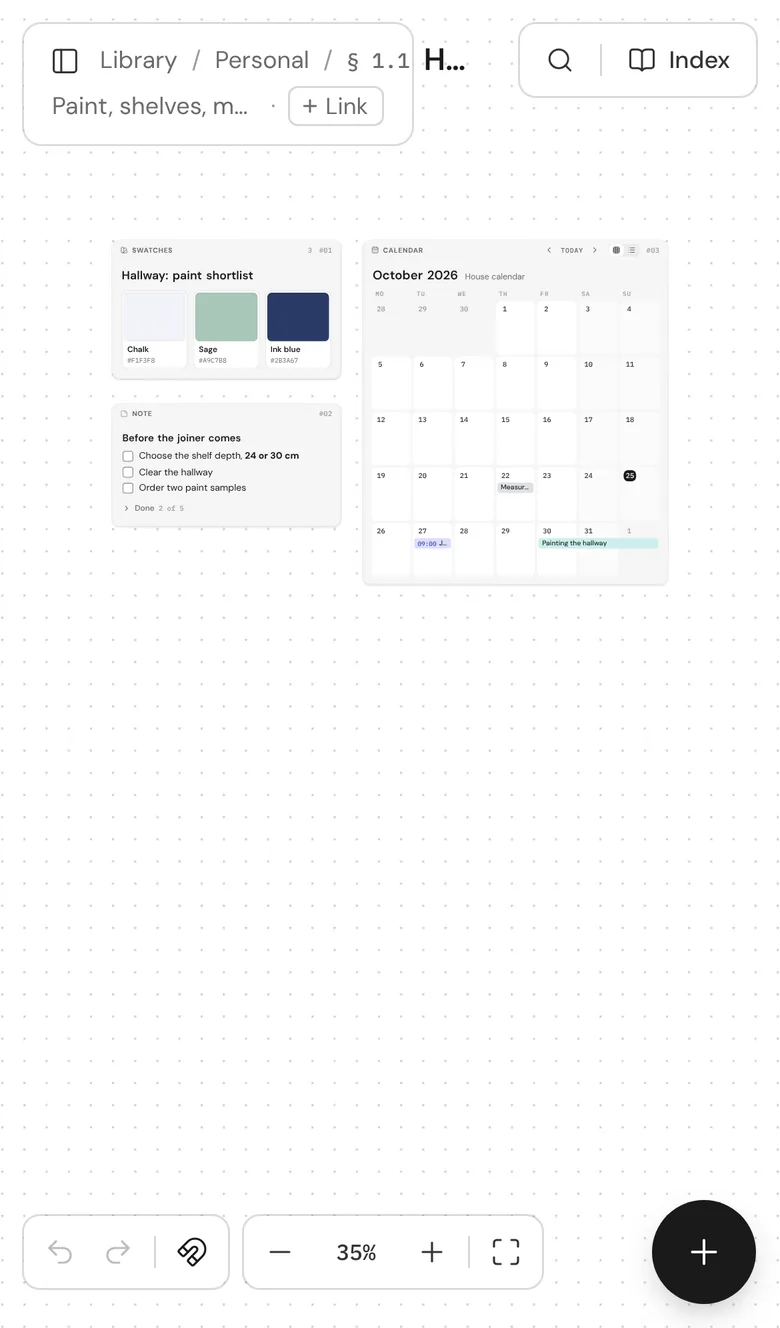
- Move aroundDrag anywhere to move the canvas, even over a card. Pinch to zoom.
- SelectTap a card to select it. Then drag it to move it, or tap its text again to write.
- Several cardsHold a card for half a second, then tap others to add or remove them. Or hold the empty canvas and drag a box. Done ends it.
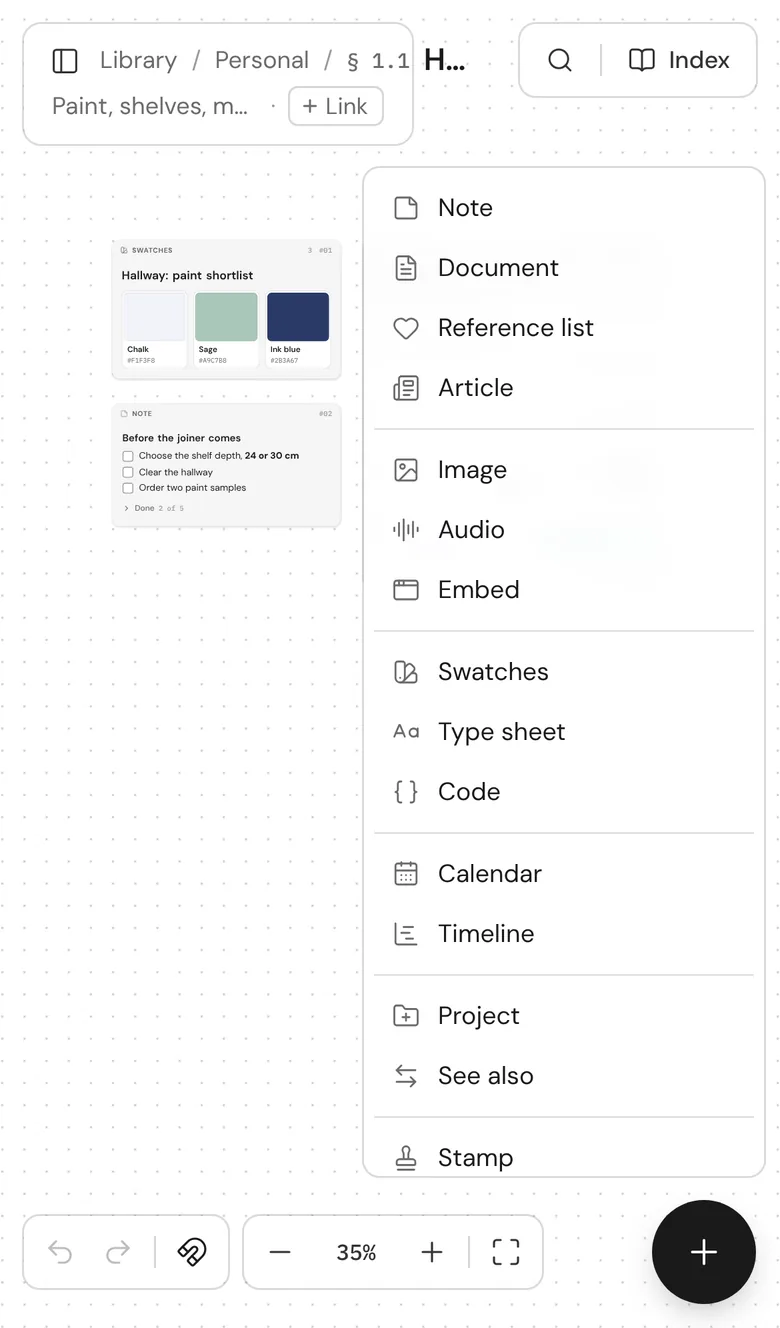
- Add a cardThe round + at the bottom right has every kind of card.
- The sidebarTap the card at the top left, anywhere but the title. It scrolls as a whole.
§ 10As a wallpaper
Keep a project on your desktop, under your windows, always one glance away.
- Use the address
https://ibid.page/?wallpaper. To open a given project, add its link at the end, the part that starts with#/p/. - On a Mac, use Plash and turn on Browsing mode to click the cards. On Windows, use Lively Wallpaper.
- If the Dock covers the tools, say how much room it takes at the end of the address:
&dock=130(bottom),&dock=left:90,&dock=right:90, or&dock=0when it hides. - The wallpaper is a separate browser: sign in with your account (with the code, not the link) to see the same libraries.
The cards stay editable. Hover the project card at the top for the sidebar, and use the seal at the bottom left to show or hide the tools (or ⌘\).
§ 11Shortcuts
Press ? in Ibid. for the full sheet. Every shortcut can be changed there with Customize.
| Getting around | |
|---|---|
| Search everything | ⌘/Ctrl K or / |
| Every card in a list | Shift L |
| The Index | G |
| Open the selected project | Enter |
| Up to the parent project | ⌘/Ctrl ↑ |
| Show or hide the sidebar | ⌘/Ctrl \ |
| Cards | |
| Duplicate | ⌘/Ctrl D or Alt-drag |
| Copy and paste | ⌘/Ctrl C ⌘/Ctrl V |
| Cut and paste (moves projects) | ⌘/Ctrl X ⌘/Ctrl V |
| Copy as a synced card | ⌘/Ctrl Alt C |
| Nudge | Arrows, with Shift for 10 |
| Delete | Delete |
| Undo and redo | ⌘/Ctrl Z ⌘/Ctrl Shift Z |
| Writing | |
| Bold, italic, underline | ⌘/Ctrl B ⌘/Ctrl I ⌘/Ctrl U |
| Link the selection | ⌘/Ctrl K |
| Tick a to-do | ⌘/Ctrl Enter |
| New line in the same block | Shift Enter |
§ 12Your data
Your libraries live in this browser, and in your account if you sign in. Nothing else reads them.
- Back upThe arrow down at the bottom of the sidebar saves the open library as a .json file. The arrow up opens one as a new library.
- Recently deletedProjects you delete stay for 30 days in Recently deleted projects, in the library menu (the library name at the top of the sidebar), with everything inside. Restore puts each one back where it was. It keeps what was deleted on this device.
- Bring back from a backupBring back projects from a backup, in the same menu, reads a .json from another device or from before and brings back only the projects missing here, in their places, without touching the rest.
- Clearing the browserClearing site data erases what is only on this browser. Sign in, or keep a backup, if it matters.